120 FPS GFX Tool app icon 120 FPS GFX Tool
90 FPS + 120 FPS app icon by TQtech

Unlock 90, 120 and 165 FPS on your Android

Most phones can already push a high frame rate - the game just hides the option. 90 FPS + 120 FPS by TQtech is a free GFX tool that unlocks those hidden frame-rate and graphics tiers in BGMI and PUBG Mobile on supported devices, using Shizuku instead of root.

  • 4.3★ on Google Play
  • 10M+ downloads
  • No root required
  • Android 8–16
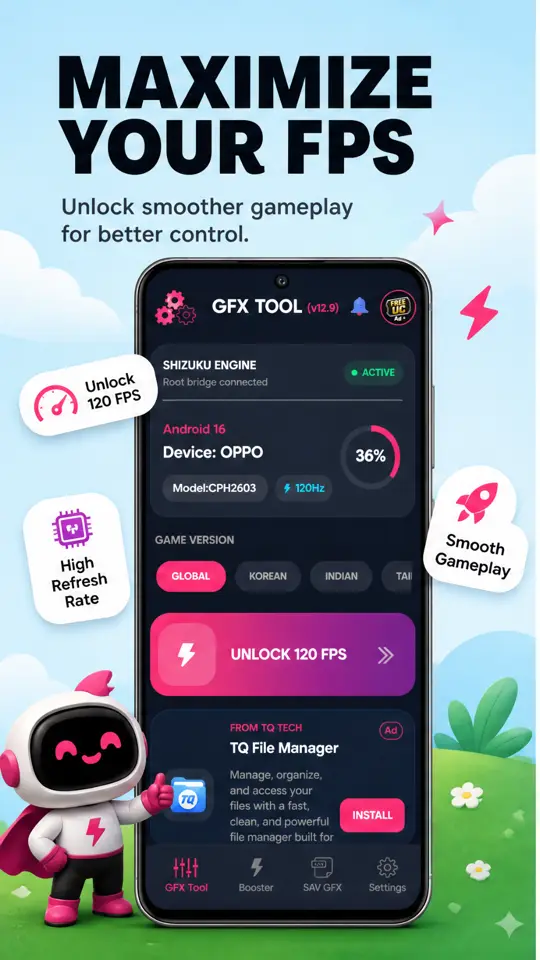
The 120 FPS GFX Tool home screen showing the Shizuku engine active, an OPPO device on Android 16 with a 120Hz panel, and the Unlock 120 FPS slider
4.3★Play Store rating
155,017Ratings
10M+Downloads
2021On Google Play since
Sept 2026Last updated

Figures as shown on the Google Play listing on 22 September 2026.

What's inside

Everything a GFX tool for BGMI should do

Six tools in one app - frame-rate unlocking, graphics profiles, a pre-match booster, wide view, a crosshair overlay and a no-root setup path.

Unlock the hidden frame rates

Your game caps at 60 FPS because your model isn't on its allow-list - not because the hardware can't cope. One slide writes the config that exposes the higher tiers, up to Ultra Extreme (120 FPS), so you play at the frame rate your panel was built for.

One-tap GFX profiles

Tuning graphics by hand before every match gets old fast. Download a profile - Performance Mode for maximum frames, 60 FPS HDR for image quality - tap Apply, and the whole configuration lands at once.

Booster before you queue

Background apps eat the RAM your match needs. The Booster tab shows live RAM and CPU load, free storage and your current ping, then frees memory and optimises the network connection in a tap.

iPad View for a wider field

A narrow field of view means spotting enemies later than the player who saw you first. iPad View changes the rendering resolution for a wider frame, and a floating overlay lets you adjust it without leaving the match.

Custom crosshair overlay

Hip-fire is guesswork without a reference point. Switch on an on-screen crosshair, pick the style, scale it with a slider and choose a colour that stands out against the map you play most.

No root, no risky APK

Rooting voids warranties and breaks banking apps. This tool goes through Shizuku instead, which grants the permissions it needs on a stock phone - and it installs from Google Play, not from an APK mirror.

How it works

From install to 120 FPS in four steps

The whole setup takes a few minutes, and you only do the Shizuku part once per reboot.

  1. Install from Google Play

    Get 90 FPS + 120 FPS by TQtech from the Play Store. It's free and supports Android 8 through Android 16.

  2. Connect Shizuku

    Start Shizuku through wireless debugging, then open the tool. The header reads SHIZUKU ENGINE - ACTIVE once the bridge is connected.

  3. Pick your game version

    Choose Global, Korean, Indian or Taiwan so the right configuration is written. Picking the wrong region is the most common reason nothing changes.

  4. Slide to unlock, then set it in-game

    Slide Unlock 120 FPS and wait for it to finish. Open your game and set Frame Rate to Ultra Extreme under Graphics.

The in-game graphics panel after unlocking, with the Frame Rate row showing Ultra Extreme selected and the note that the current frame rate is 120 FPS
After the unlock, Ultra Extreme appears in the game's own Frame Rate row and reports 120 FPS.

Read the full guide to unlocking 120 FPS in BGMI

Screenshots

A look at the app

Real screens from the current Play Store release.

GFX Tool home screen with the Shizuku engine marked active, the detected OPPO device on Android 16 at 120Hz, game version tabs for Global, Korean and Indian, and the Unlock 120 FPS slider
Shizuku connected, device detected, one slide to unlock.
GFX Profiles screen listing Performance Mode for maximum FPS and 60 FPS HDR, each with a Download and an Apply button
Downloadable GFX profiles you apply in one tap.
Booster screen showing RAM at 65 percent, CPU at 25 percent, 61GB free storage and a 13ms ping rated excellent, with Boost Memory and Optimize Network actions
Live RAM, CPU, storage and ping before you queue.
iPad View screen explaining how to change screen resolution for a wider view, with a floating control that can be toggled on or off during a match
iPad View, with a floating control for mid-match changes.
Crosshair screen with the overlay crosshair switched on, a style picker, a size slider at 100 percent and five colour swatches
Crosshair overlay with style, size and colour controls.
The unlocked in-game graphics menu with Smooth selected and the frame rate set to Ultra Extreme at 120 FPS
The result: Ultra Extreme available in the game itself.

Use cases

Who this GFX tool is for

Mid-range devices

Your phone has a 120 Hz screen but the game won't use it

This is the single most common case. The panel refreshes at 120 Hz, the chipset can hold the frames, and the game still caps you at 60 because the model isn't on its list. Unlocking exposes the higher tiers so the display finally does its job.

Competitive play

You lose fights you should be winning

At 120 FPS a frame lands every 8 ms instead of every 17 ms, so tracking a moving target is steadier and recoil is easier to read. Pair it with iPad View for a wider field and a crosshair overlay for hip-fire.

Older hardware

You want stable frames, not maximum frames

On an older phone, chasing 120 FPS causes heat and stutter. Use a Smooth or Balanced profile to hold a steady 60 or 90 instead - consistency beats a high number that keeps collapsing mid-fight.

Before every match

Your first match of the session always feels rough

Usually it's background apps holding RAM and an unoptimised connection. Free memory, check your ping and optimise the network from the Booster tab before you queue.

Guides

Setup and troubleshooting guides

Straight answers to the things that actually go wrong - written first, app second.

How-to

How to unlock 120 FPS in BGMI

The complete walkthrough, from wireless debugging to the Ultra Extreme setting inside the game.

Read the guide →
Setup

Shizuku setup, and fixing "Connecting"

What Shizuku is, how to start it over wireless debugging, and why it gets stuck.

Read the guide →
Troubleshooting

120 FPS option not showing? Here's why

Nine causes in the order worth checking, including what happens after a game update.

Read the guide →
Compatibility

Does my phone support 120 FPS?

How to check your panel's refresh rate and tell a hardware limit from a software lock.

Read the guide →
Comparison

60 vs 90 vs 120 FPS - what changes

The real difference in frame times, input feel, battery and heat.

Read the guide →
Comparison

How to choose a GFX tool for BGMI

What actually separates a safe tool from a repackaged APK, and how to judge one.

Read the guide →
Troubleshooting

How to fix lag in BGMI

Telling FPS lag from network lag, and the fix for each - they're not the same problem.

Read the guide →
Explainer

Smooth, HDR and Ultra HDR explained

What each graphics tier costs you in frames, and which to pair with a high frame rate.

Read the guide →
Device list

120 FPS supported devices list

Which phones show Ultra Extreme in BGMI and PUBG Mobile - community-reported, by brand, with the caveats stated up front.

See the list →
Explainer

FPS booster for BGMI: what actually works

Why most "boosters" only clear RAM, and the three things that genuinely raise your frame rate.

Read more →
Comparison

FPS Booster – 120 FPS Turbo alternative

Side by side with a named competitor, using figures from both Google Play listings.

Read more →
How-to

How to enable iPad View in BGMI

Setting up wide view, using the floating control, and putting your resolution back.

Read the guide →

Reviews

What players say on Google Play

Quoted in full, exactly as written - caveats included.

“Believe me, if it weren't for this app, I wouldn't be able to play the game. I'm playing on this app. I would give this app 20 stars if I could. I love it and I request them to keep it up. My mobile is 30 fps, so it runs above 70 fps, apparently.”

SK Songs · 9 September 2026 · via Google Play

“To everyone claiming this app doesn't support 120 FPS that's simply not true. If you check the settings, you'll see the Ultra frame rate option is available alongside Ultra HDR. If you think I'm wrong, go to the frame rate settings, switch to another option, then change it back. You'll notice the difference immediately. Many people are just confusing the settings, but this is genuine 120 FPS. I absolutely love this app.”

Robyn Tafadzwa · 30 June 2026 · via Google Play

“This apk is very good it's work properly when I use this apk my game is going very smooth with good connectivity And please update this AP 4.6 virsion”

Muhammad Fahad · 11 September 2026 · via Google Play

“This is a good app with a clean UI and suitable for most devices but please fix the app quickly when the a new update comes out. Some people said it takes at least 2-3 weeks to fix the app. We want to experience the new update with high fps too.”

Ma Khin Wai Zin · 15 May 2026 · via Google Play

Read all 155,017 ratings on Google Play →

FAQ

Common questions

Do I need root to unlock 120 FPS?

No. The app uses Shizuku, which grants system-level permissions on a completely stock, unrooted phone through Android's own wireless debugging. You keep your warranty, and apps that refuse to run on rooted devices - banking apps in particular - keep working.

Learn how to set up Shizuku step by step →

Why is the 120 FPS option not showing in my game?

Usually one of four things: the wrong game version is selected in the tool, the Shizuku bridge dropped after a reboot, the game updated and reset its configuration, or your device genuinely caps at 60 or 90 Hz. Check them in that order.

Learn why the 120 FPS option is missing and how to fix it →

Does my phone support 120 FPS?

Your display has to refresh at 120 Hz and your chipset has to sustain the frames. A 60 Hz panel cannot show 120 FPS no matter what any tool does. The app reads your device's refresh rate on the home screen - if it shows 60Hz, 120 FPS isn't available to you; if it shows 120Hz and the game still caps at 60, that's a software lock and this is exactly what the tool addresses.

Learn how to check whether your device supports 120 FPS →

Is a GFX tool safe to use?

This one installs from Google Play, which means it passes Google's malware scanning and can be removed like any other app. It changes graphics configuration only - it doesn't touch game files or memory. The genuine risk in this category is APK mirrors: repackaged builds carrying adware are common, which is why you should install from the Play listing rather than a download site.

Will using a GFX tool get my account banned?

We can't speak for any game publisher's enforcement decisions, and nobody honestly can. What we can say is what the app does: it adjusts graphics and frame-rate configuration, and does not modify game files, inject code, or alter gameplay. If you want certainty about what is permitted, the publisher's own terms of service are the only authoritative source.

Why did the tool stop working after a game update?

Game updates frequently rewrite the configuration files a GFX tool depends on, so the unlock is reset and the app needs a matching update before it works again. Several Play reviews mention a wait of a couple of weeks after a major patch. Try re-applying the unlock first; if the option still doesn't appear, the app itself needs updating.

Learn what to check after a game update →

Is 120 FPS actually better than 90 FPS?

The jump from 60 to 90 FPS is the one you feel most - frame time drops from about 17 ms to 11 ms. Going from 90 to 120 shaves off roughly 3 ms more, which competitive players notice while most others don't. Both cost battery and generate heat, so on a mid-range phone a stable 90 often beats a 120 that keeps dropping.

Learn how 60, 90 and 120 FPS actually compare →

Which games does it work with?

The app targets battle-royale titles including BGMI and PUBG Mobile, with a version selector for Global, Korean, Indian and Taiwan builds. Support depends on the specific game version - a build released after the app's last update may not be supported yet. This is an unofficial tool and is not affiliated with any game publisher.

Is the 120 FPS GFX Tool free?

Yes. The app is free on Google Play with no in-app purchases. It is ad-supported, so you'll see ads while using it - the Play listing declares this as "Contains ads".

What Android version do I need?

Android 8 or newer, including Android 16. The app reads your Android version and device model automatically on its home screen, so you don't have to look them up.

90 FPS + 120 FPS app icon

Ready to play at the frame rate your phone can handle?

Install 90 FPS + 120 FPS by TQtech, connect Shizuku, and unlock the frame-rate options your game has been hiding.

Get it on Google Play

Free · Contains ads · Android 8+ · No root required

Get it on Google Play